Build a function-by-function connectivity matrix
KOKO may use different connection paths for different tasks; a single yes-or-no Wi-Fi answer would hide those distinctions. For the KOKO version and access program under review, request a function-by-function answer from Homebot One: which setup steps and functions need a local network, internet access, a phone or computer, a cloud account, another device, or staff support. Request the answer in writing when connectivity affects your decision.
The useful unit is a function, not the product name. Setup, movement, controls, updates, voice interaction, remote support, maps, notifications, and diagnostics may have different dependencies, but only current documentation can establish them. Create a table with required, optional, unavailable, and unknown for each function you plan to evaluate.
Map the connection and account path
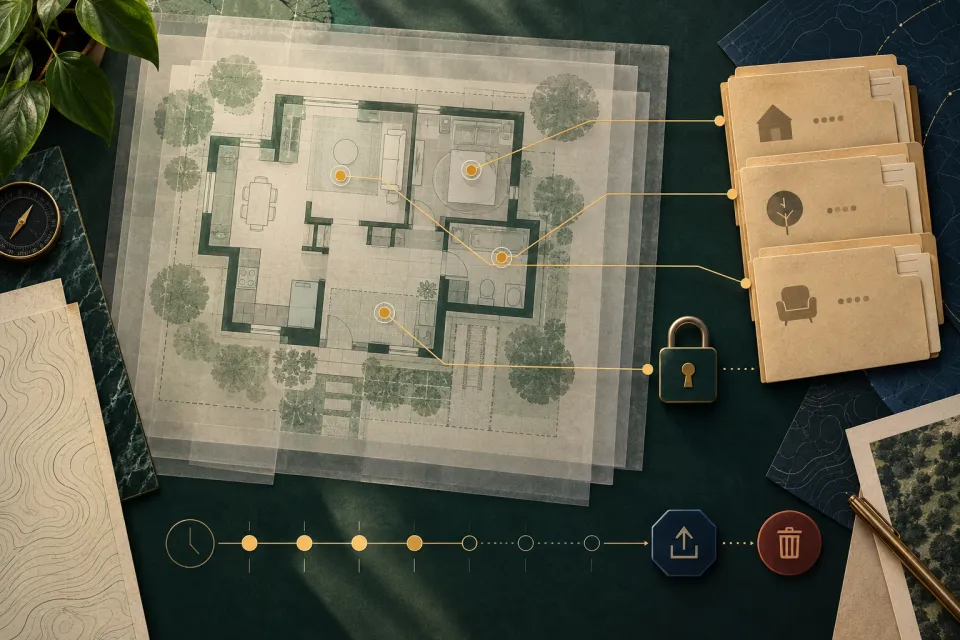
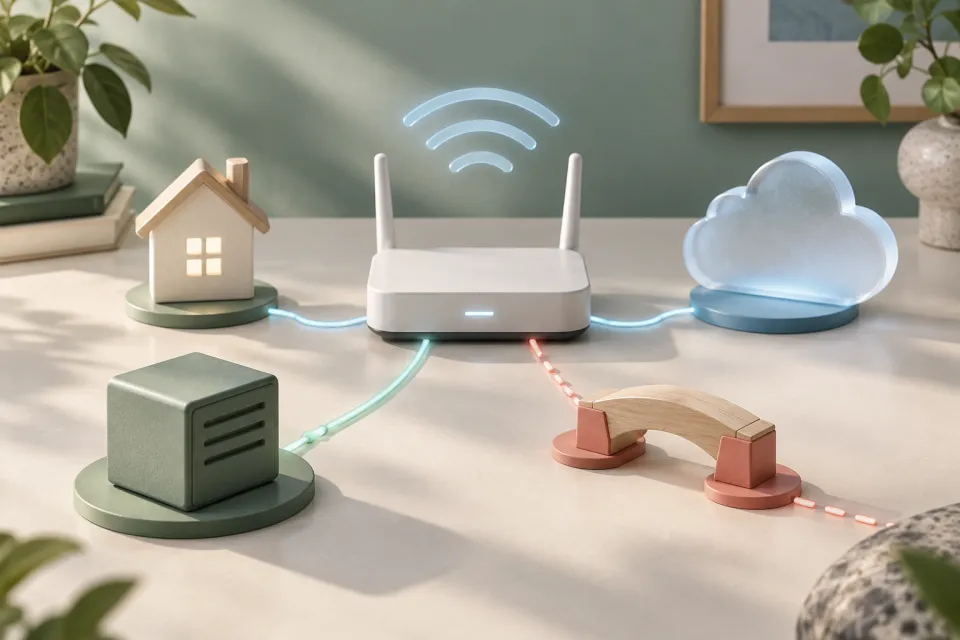
Ask what connects to what during setup and use. Identify the robot, home network, internet services, user devices, accounts, and any remote-support connection. For each link, ask who provides it, who administers it, what credentials are used, and what information crosses it. Do not request confidential implementation details; request enough information to make an informed household or organizational decision.
Use a dedicated account and network arrangement only if it is supported by Homebot One and consistent with your security plan. Do not expose passwords, disable protections, open inbound access, or create an improvised hotspot just to complete a demo. If a workplace, research lab, apartment building, or care setting manages the network, involve its authorized administrator before setup.
- Which KOKO components and user devices join the local network?
- Which functions contact an internet or third-party service?
- Which accounts exist, who owns them, and how is access removed?
- What network changes are requested, and who is authorized to approve them?
Define what offline means before testing it
Offline can mean no internet while local Wi-Fi remains available, no local network at all, a service outage, an expired account, or a deliberately disconnected mode. Those states can have different results. Have the Homebot One team identify which states are supported and which current functions remain available, become limited, queue data, display an error, or require a controlled stop.
Do not disconnect the system during an active movement or task unless the team’s procedure explicitly calls for it. Test interruptions only in a controlled, low-consequence session with an approved method. Observe the status indication, control availability, data handling, and recovery steps; do not assume the system fails open, fails closed, or continues locally.
Ask about updates, security, and support dependencies
Connectivity may be used for software updates, security changes, diagnostics, or support, but the current process must be confirmed. Ask how users learn about an update, whether installation can be scheduled or deferred, what happens if it is interrupted, how long the build receives support, and whether a function changes when an account or service ends.
Also ask how the system authenticates users and services, how access can be revoked, and where security reports are sent. A household should know how to remove an old user, replace a phone, change a network, and end participation in a pilot. Avoid making claims about encryption, local processing, or cybersecurity certification unless Homebot One supplies current evidence.
- How are software and security updates delivered and communicated?
- What happens during an interrupted update or discontinued service?
- How are users, devices, support personnel, and services authenticated and removed?
- Where should a suspected security or account issue be reported?
Run a connectivity checklist before the home demo
Before setup, record the approved network, responsible account owner, required devices, current privacy notice, and support contact. Confirm that the chosen test area has the supported connectivity without moving networking equipment into an unsafe or impractical place. Keep sensitive household and organizational systems outside the evaluation unless their administrator approves the connection.
During the demo, ask the operator to identify which step uses which connection. End with one approved interruption or recovery example if Homebot One supports it. Document what remains unknown. The answer to does KOKO need Wi-Fi may be a matrix rather than yes or no, and that is more useful for planning than a simplified claim.
Frequently asked questions
Does KOKO need Wi-Fi?
Check the exact KOKO version and function with Homebot One. Setup, updates, controls, support, and individual tasks may have different local-network and internet requirements.
Does KOKO work offline?
Offline has several meanings. Confirm what happens without internet, without local Wi-Fi, during a service interruption, and after an account issue. Never presume the same behavior in each state.
Should I put KOKO on a guest network?
Use only a network arrangement supported by Homebot One and approved by the responsible network administrator. A guest network may have restrictions that affect setup or operation.
Can I disconnect Wi-Fi to test KOKO?
Only follow an approved interruption test in a controlled, low-consequence session. Do not disconnect connectivity during movement or another active task without current product-specific instructions.
Sources & further reading
From Homebot One, the team building KOKO in Fremont, California.