Confirm the setup for your KOKO program
Before rearranging a room or buying network equipment, ask Homebot One what the current KOKO build requires. A demo unit, research platform, developer arrangement, and future household product may have different setup steps. Request the applicable instructions, included equipment, supported region, and contact for installation questions.
Homebot One describes KOKO as real hardware being tested in real rooms. That makes the room part of the evaluation. Start with a small, well-understood area and one routine. Expanding after a stable first experience gives the household a clearer way to spot what changed.
Choose a first route and home position
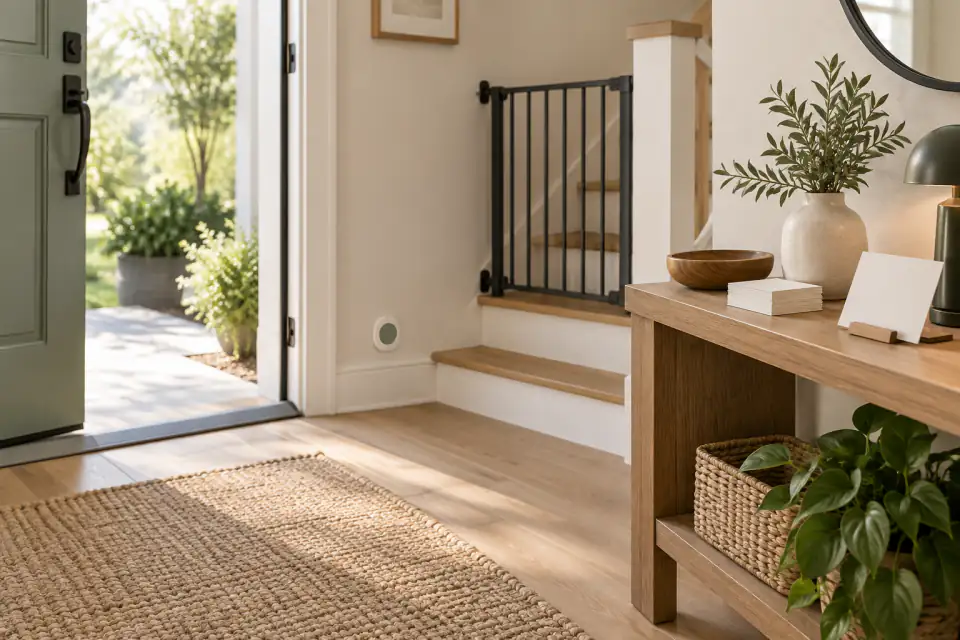
Walk the route and note flooring, thresholds, stairs, rugs, doors, tight turns, glass, cables, pets, and the times when people use the space. Ask what clearance and lighting the current system needs. Keep unverified hazards and private areas outside the route until you understand how boundaries are set and maintained.
Place the approved charging or home position according to the manufacturer’s directions. It should have the required power, ventilation, and access without blocking an exit or creating a cable trip hazard. Avoid assuming that a location shown in a promotional image is suitable for your hardware or room.
Prepare the home network
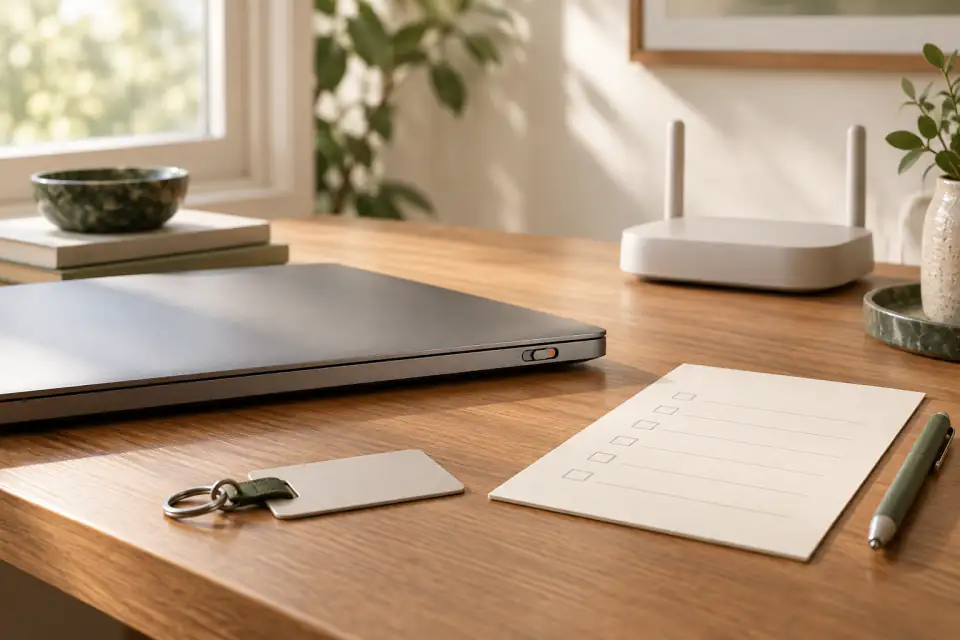
Ask which connection, frequency band, account, phone, browser, or local service the current setup uses. Then review the network before adding the robot. The Federal Trade Commission recommends protecting home Wi-Fi with WPA3 or WPA2 encryption, changing default router administrator credentials, keeping router software current, and turning on the router firewall.
The FTC also explains that a guest network can separate visitors from a primary network. Whether a dedicated network is appropriate for KOKO depends on the robot’s current requirements and any local integrations, so confirm the topology with Homebot One. Record the network name used for the device without placing passwords in a shared setup sheet.
- Update the router and use a unique administrator password and Wi-Fi password.
- Confirm the supported Wi-Fi configuration before creating a dedicated device network.
- Enable account protections offered by the current KOKO service.
- Store recovery information securely and define who may administer the device.
Set privacy and household rules together
Identify the sensing, mapping, account, and cloud features involved in the first routine. Review the current privacy notice and ask how information can be accessed, retained, exported, or deleted. Decide which spaces and times are private and how a person can pause an interaction without having the administrator’s phone.
Write a short household guide in plain language: where KOKO may operate, when it may run, who supervises, how to stop it, and who to contact if something looks wrong. Include rules for guests, children, pets, and caregivers. Update the guide when the room, software, or household membership changes.
Create and test a baseline
Record the hardware identifier, software version, setup date, approved accessories, support channel, and chosen settings. Test the normal start, pause, stop, charging, and restart procedures with the responsible adults. Then run the first routine while everyone knows it is an evaluation and can observe the full interaction.
Keep notes about route problems, confusing signals, unexpected stops, and the help required. Do not solve recurring issues by disabling safeguards or inventing a workaround. Share the specific observation with Homebot One and follow current guidance. Once the baseline is stable, add one room, routine, integration, or household user at a time.
Frequently asked questions
What do I need to set up KOKO at home?
Requirements depend on the current KOKO build and access program. Ask Homebot One for the applicable instructions, power, network, device, space, account, and supervision requirements.
Should KOKO use a guest Wi-Fi network?
A separate network can be useful in some connected-home setups, but it may affect local integrations. Confirm the supported network design with Homebot One and your router documentation.
How large should the first setup area be?
Begin with one simple, approved route that matches the current instructions. Expand only after you understand movement, controls, privacy settings, and household responsibilities.
Sources & further reading
From Homebot One, the team building KOKO in Fremont, California.